Through the years, I’ve had a lot of experience using Canva to create flyers, signs, social media materials, bookmarks, and even playlist covers—almost entirely with a free Canva account with no subscription. Sure, there are more options available with a paid subscription, but even with a free account, Canva is still a valuable tool with a ton of resources and design templates. It’s amazing what you can create without spending anything.
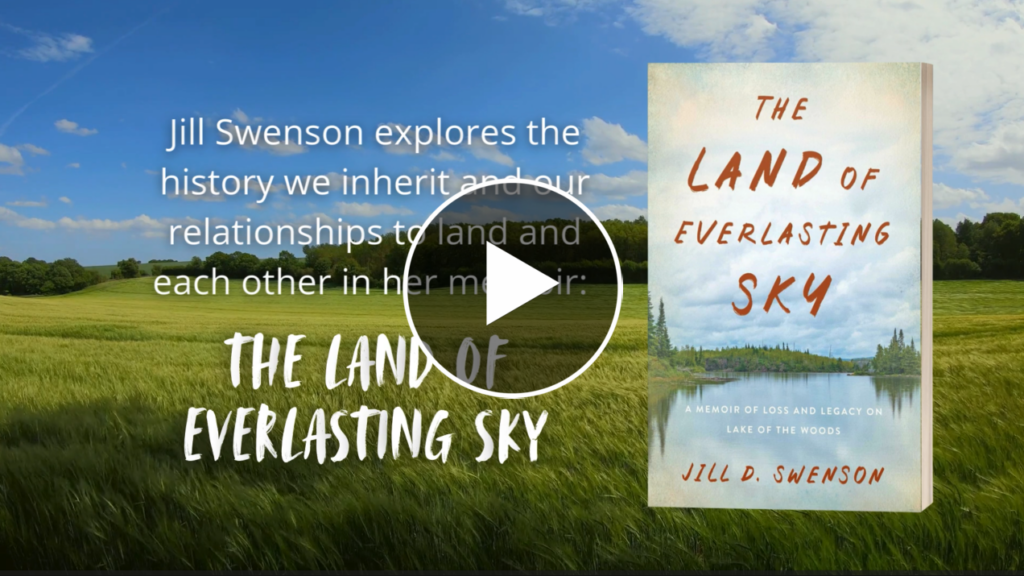
This year, in helping with the publicity for Jill Swenson’s memoir releasing in June, The Land of Everlasting Sky, I took on a new challenge of learning how to use Canva to create a book trailer. Making video content is not something I have done before, let alone creating a trailer from scratch. But after reading and watching several tutorials online, I found Canva makes the process fairly accessible. In the end, I’m happy with what I was able to create on a free Canva account with no previous video-making experience. And I’d like to share some of the insight and advice I picked up from this process so that maybe you, too, can create your own book trailer with Canva.
The Script
The first step in making a book trailer is to come up with a script. Basically, the script should be a short book description of no more than five sentences. To do this, I pulled lines and inspiration from the existing cover blurb and marketing materials for The Land of Everlasting Sky but then edited it down to only the most important parts. Conciseness is key. Viewers watching the trailer won’t have a lot of time to read the text, and having a lot to read at once also won’t keep viewers’ attention. In the script, you’ll want to introduce the setting, the main characters, the inciting incident or conflict, and the stakes or hook to get viewers interested in picking up the book.
Planning
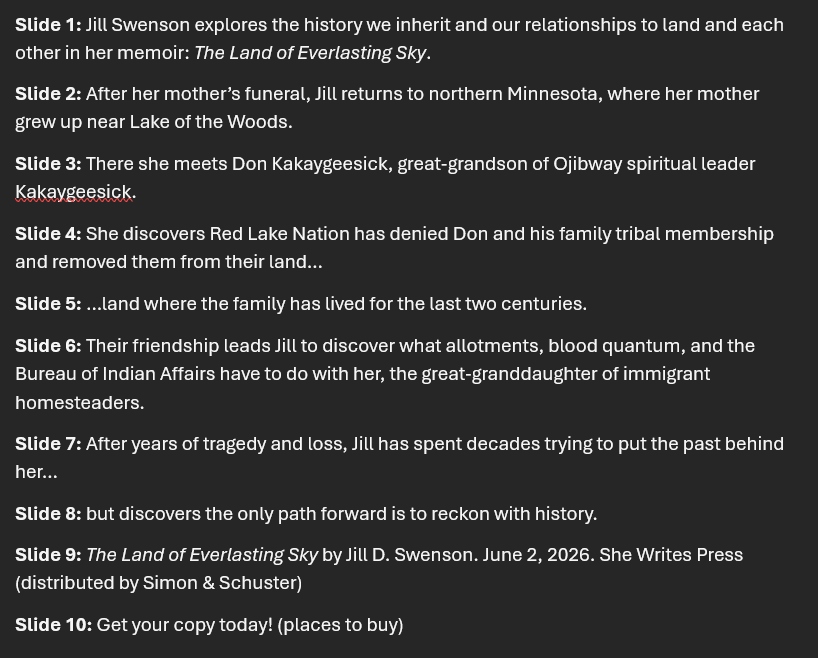
Once you have a script, you can start planning out the video in more detail. From tutorials, I knew the total length of the book trailer should ideally be under one minute, and the general advice was to aim to make each video slide between 4-6 seconds long, except for the first and last slides, which would be the longest at about 7-9 seconds since those are the most important. Keeping the slides as short as reasonably possible helps maintain visual interest for the viewer.
The first slide introduces the book title, cover, and genre. The next several slides contain the five-sentence book description script, and the last slide brings back the book cover, title, and author and provides information about the publisher and an invitation to buy the book, showing where it can be purchased. For me, it helped to create a “roadmap” of the video, listing out what text would go on each number slide, so I had a better idea of what each slide would contain. Don’t be afraid to break up sentences between multiple slides. I found that generally, book trailers are somewhere between ten to twelve slides; the book trailer for The Land of Everlasting Sky is ten slides.
Visuals
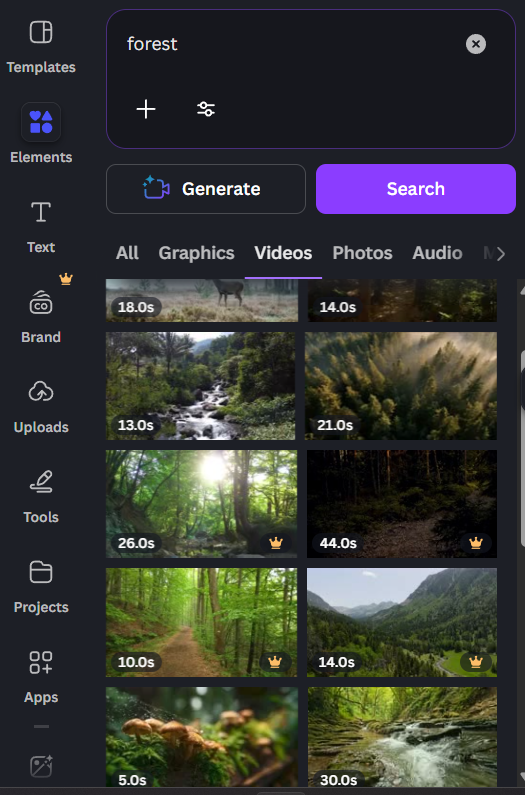
Next, it’s time to choose visuals. These will become the background behind the text of each slide. When coming up with visuals for the Land of Everlasting Sky trailer, I wanted to keep the same feeling, mood, and branding as existing materials like the book cover, Jill’s author website, and social media materials for the book. In my search, some keywords I used were things like trees, forest, field, sky, nature, lake, and watercolor landscape. Canva has a lot of options for copyright-free photos and video clips to use, and while not every visual piece needs to be a video clip, it helps to have at least a couple, since the visuals in the trailer are mainly what capture people’s interest.
Jill also provided some of her own photos of people, maps, and places from the book, which I was able to upload to Canva. And I used this free site to create a 3D book cover mockup, which makes the cover stand out more in the trailer and gives viewers an idea of what the book will look like in print (or on an e-reader).
Fonts
You’ll also want to choose fonts to use in the trailer. Canva has an almost overwhelming number of fonts to choose from, but ideally, you’ll also want these to be similar to fonts already used in existing branding materials. One of the fonts should be something eye-catching that captures the feeling of the book, such as a font similar to the one used for the title on the book cover. This font will be used sparingly to capture the viewer’s interest; in the trailer for The Land of Everlasting Sky, I only used it for the book title on the first and last slides.
The second font you choose should be something easy to read, as this will be used for the bulk of the text. In my case, I chose a sans-serif font similar to one on Jill’s author website, which I’d used previously when making social media materials for the book.
Assembly
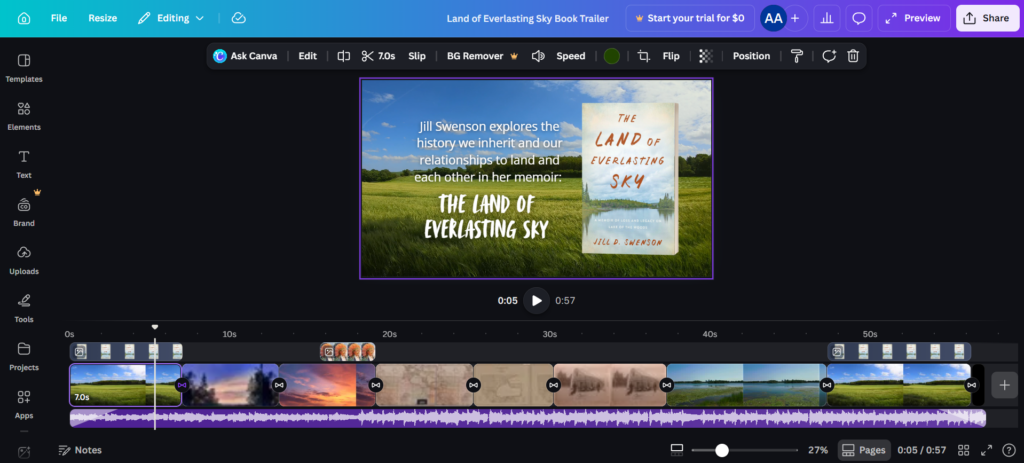
When assembling the book trailer, create a new video project on Canva, then work your way from the first slide to the last using your video “roadmap,” if you created one, and cut each slide to the proper length (7-9s for the first and last slides, 4-6s for everything else). A piece of advice I came across a lot in tutorials was to make sure to use the same background visual in the first and last slides for cohesiveness. I also added a completely black 1-second slide at the very end to act as a soft close to the video.

When adding text and images to each slide, use the “page navigation” on the bottom of the screen to time exactly when and how long you want each element to appear on each slide. This can be time consuming, and out of all the steps involved in creating a book trailer, this is the one that took me the longest. Getting everything to line up just right was meticulous, but the end product was worth all the effort.
Transitions and Animations
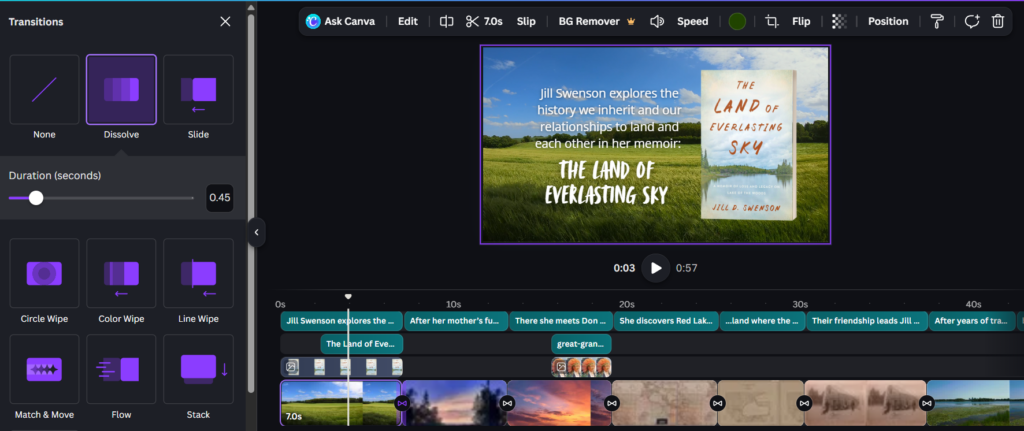 Adding transitions makes the flow between slides smoother and maintains the cohesiveness of the whole video. Conveniently, once you choose a transition, Canva allows you to apply that same transition to all slides with one click.
Then, add even more movement and visual interest to each slide element with animations. Every text box and image can have its own animation, with options ranging from subtle to flashy; keep the overall mood and tone of the book trailer in mind when choosing animations. If you pay for a subscription to Canva, there are additional customization features, such as choosing the speed of the animation, but even with a free Canva account, there are lots of animations to make a professional-looking video.
Audio
Finally, choose the music. This, too, can be a time-consuming step, especially on a free Canva account without a subscription. The good news is everything on Canva is copyright free, so you won’t have to worry about that. Search by typing in keywords, or select from various moods and genres. Pay attention to the length of the track as you search; you’ll want something that is at least as long as your video, or longer. Longer tracks can be cut short, but shorter tracks can’t be lengthened to fit. And ask yourself again: what fits the mood and tone of the trailer? Some searches I used while making the trailer for The Land of Everlasting Sky were folk and acoustic. Once you’ve chosen music, don’t forget to add a few seconds of fade to the beginning and end for a smoother viewing experience.
Finishing Touches
Don’t be afraid to preview the trailer as many times as you like while creating it to see how everything looks. The farther you get into the process, the more difficult it will be to change things later. For instance, if you get to the final steps and then discover the slides need to be lengthened, that will throw off the timing of everything else in the video, and it can be tedious to fix it. Catching and changing things early will make the whole process much smoother; this is one of the biggest lessons I learned from the process.
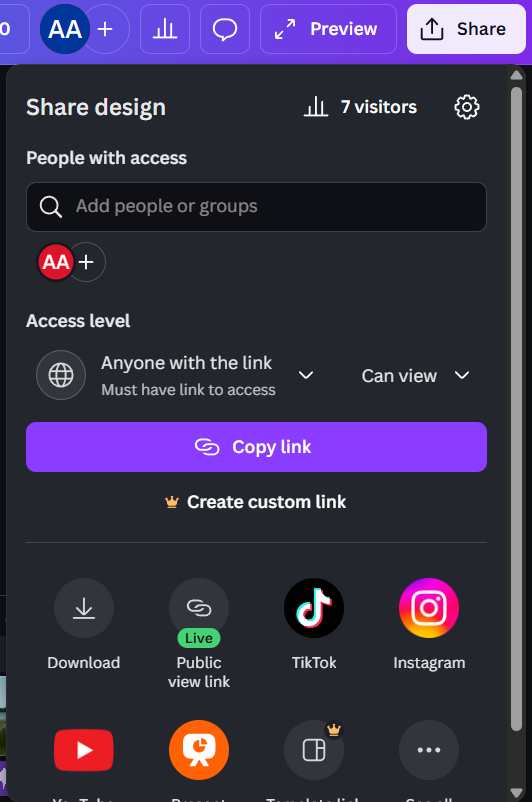
Once you’re happy with the book trailer, click the “Share” button to download the MP4 video file in 1080 HD quality for sharing or uploading to YouTube. Additionally, Canva has a feature called “Public View Link,” which generates a link you can use to share the video with anyone; they won’t even need a Canva account to watch it. And if you decide to make changes to the video in the future, the link will automatically reflect those changes.
Even without a paid subscription, Canva is a valuable tool authors can use to create a quality book trailer.
Watch the completed book trailer for The Land of Everlasting Sky here or on YouTube.